

Unlocking Your Private Web Server to the World for Free: No Cloud Service Fees from AWS, Azure, GCP, and More!
Step-by-Step Guide to Sharing Your Private Machine's Web Content Without Paying for Cloud Services
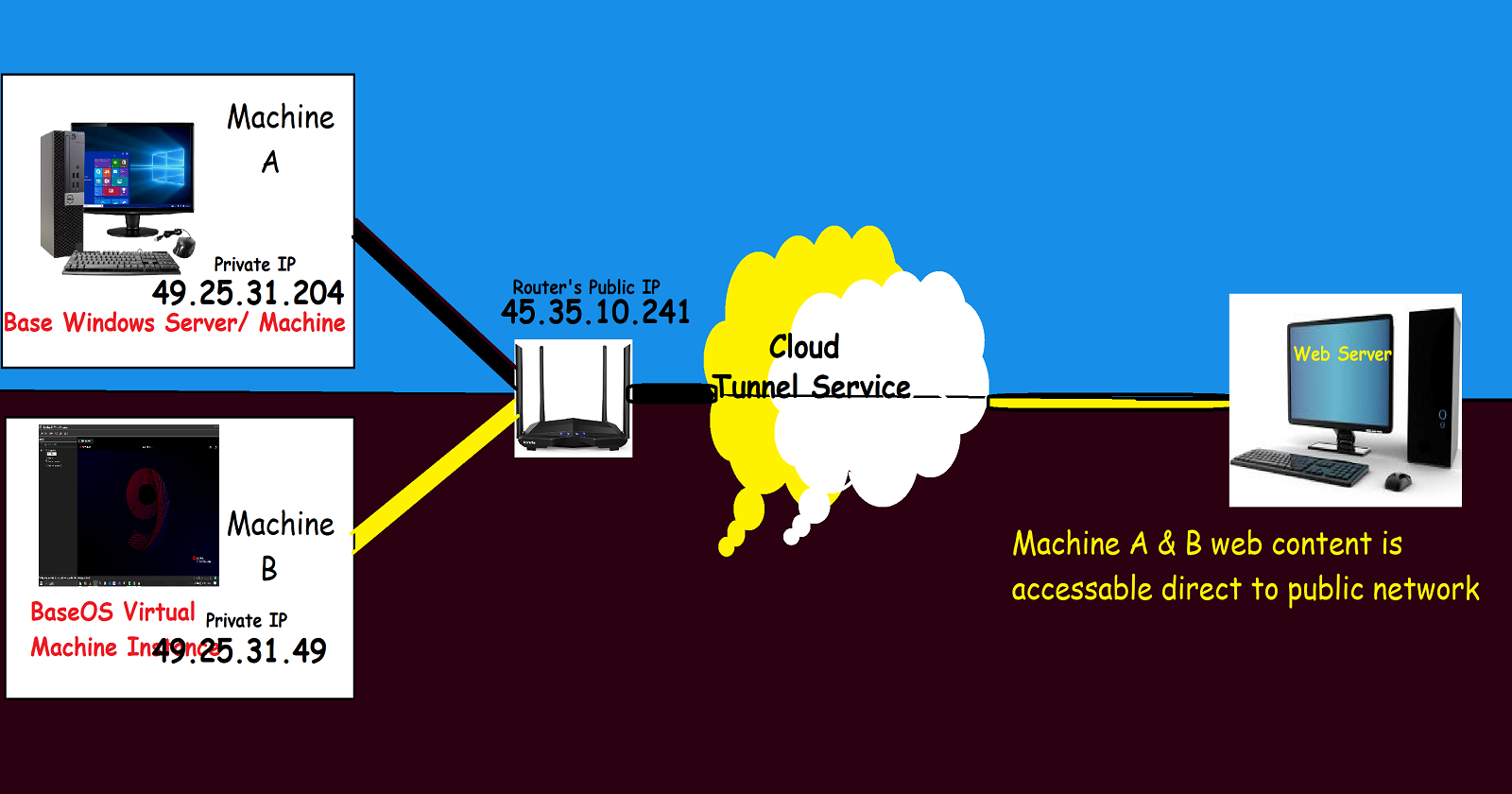
Let's learn together and serve the society, Make India Proud.
If you're feeling frustrated with paying your cloud services bills or if you can't access cloud services because you've used up all your free resources, you're in the right place! We're here to help you out, so no need to worry.
This free service opens up a world of possibilities:
Showcase your portfolio
Run your blog site locally
Create compatible projects using cloud services
And much more!
Step 1:( Build your web application )
Build a web application on your Linux virtual machine and set up web services such as Apache or Nginx.
# yum install -y httpd
# echo "This web server is working" > /var/www/html
# systemctl enable --now httpd ; systemctl status httpd
# firewall-cmd --permanent --add-service=httpd
# firewall-cmd --reload
Step 2: Set Up a Tunnel Service to Share Your Content with the Public
# yum install -y npm
# npm install -g localtunnel
# lt --port 80 &
lt --port 80
your url is: https://curvy-books-sneeze.loca.lt
/usr/local/lib/node_modules/localtunnel/bin/lt.js:80
This link address is your web application's public address, paste this link to your recruiter, friends, group, or manager so they can see what you shared, or for advanced uses, you can set a reverse proxy instance on the cloud instance, and that instances will listen on port 80 and redirect on this link address. after that, you can set that cloud instance IP to the domain name server.
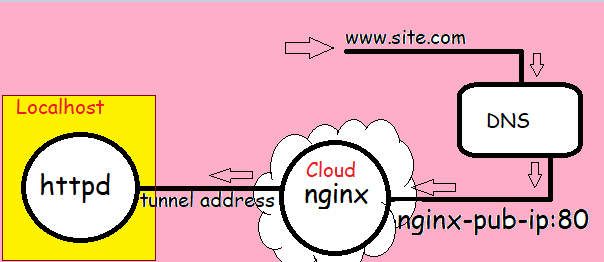
A practical scenario for a big project to save money to spend on cloud resources
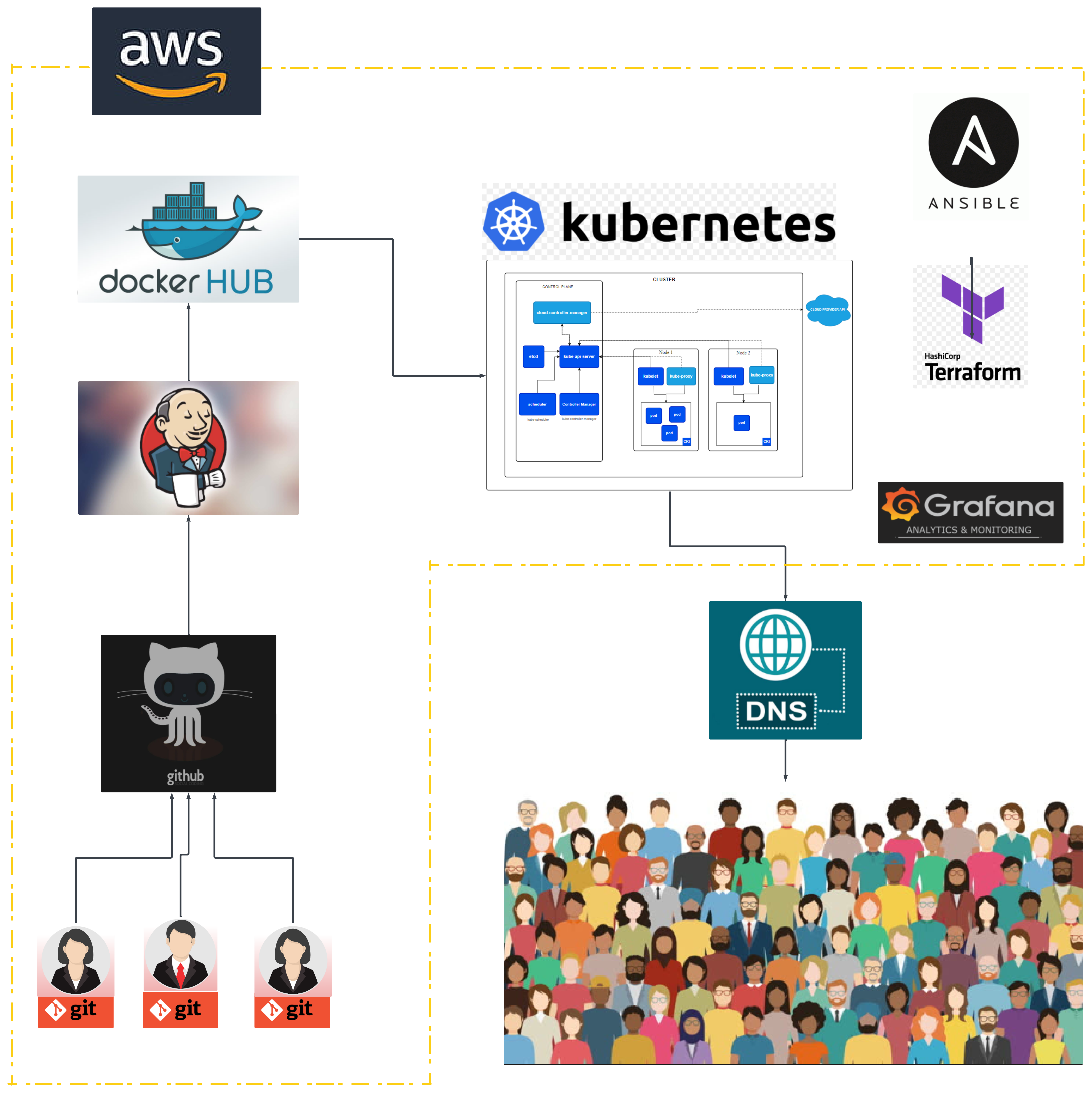
In this project, all resources are created on a localhost virtual machine for example
Git ---------> VM Linux (Bridge Network)
Git Gub ---------> Already on the web
Jenkins ------------> VM Linux (Bridge Network)
Docker Hub ----------> Already on the web
AWS --------------------> We are not using itKubernetes ----------------> VM Linux (Bridge Network)
Ansible -----------------------> VM Linux (Bridge Network)
Terraform -----------------------> VM Linux (Bridge Network)
Grafana ---------------------------> VM Linux (Bridge Network)
# yum install -y npm
# npm install -g localtunnel
# lt --port 80 &
lt --port 80
your url is: https://curvy-books-sneeze.loca.lt
/usr/local/lib/node_modules/localtunnel/bin/lt.js:<App-Port>
Reference:-
Local tunnel:-https://localtunnel.me/


