

VSFTP: Your Secure Digital Vault for Effortless File Sharing
Create an Ansible playbook for automating the configuration of a VSFTP server.

FTP stands for File Transfer Protocol. It's like a highway system that allows you to move files between your computer and a server on the internet. It's been around for a long time and is one of the earliest ways to share files between computers.
VSFTP is a specific type of FTP server software. Think of it as a super safe and organized garage where you can store and exchange files with others securely. It's known for being very secure, hence the name, and it's efficient at managing files for sharing.
Imagine you're a photographer, and you need to send high-resolution images to your clients. Using VSFTP, you set up a secure space on your website where each client has their own folder. When a client needs their pictures, they log in securely and access only their folder to download the images. It's like having a locked drawer in a file cabinet where each client can access only their documents.
VSFTP ensures that only authorized users can access these folders, and it's really fast at transferring large image files without losing any quality. Plus, it keeps everything organized and separate for each client, just like how you'd organize folders for different clients in your workspace.
In essence, FTP and VSFTP are like the trusted and secure delivery systems for files on the internet. They allow you to share, access, and manage files between computers or users in a structured and secure way, making them essential tools for businesses and individuals who need to exchange files regularly.
[ansible@cn ~]$ vim ucredent.yml

groupname: sftpusers
username: thift
password: thift

:wq!
[ansible@cn ~]$ vim sftp.yml

---
- name: Configure SFTP on the {{ hosts }} server
  hosts: stage
  vars_files:
    - ./ucredent.yml
  tasks:
    - name: "Yum repository configuration on {{ hosts }} server"
      ansible.builtin.yum_repository:
        name: "{{ item.name }}"
        description: YUM repo
        file: external
        baseurl: "{{ item.baseurl }}"
        gpgcheck: 0
        enabled: 1
      loop:
        - { name: online_one, baseurl: "https://mirror.stream.centos.org/9-stream/AppStream/x86_64/os/" }
        - { name: online_two, baseurl: "https://mirror.stream.centos.org/9-stream/BaseOS/x86_64/os/" }
      when: ansible_facts.distribution in ['RedHat','Fedora'] and ansible_facts.distribution_major_version | int >= 9


    - name: Install Packages
      yum:
        name: "{{ item }}"
        state: latest
      loop:
        - vsftpd
        - openssh-server
        - openssh-clients
      notify: restart sshd service

    - name: groupadd "{{ groupname }}"
      group:
        name: "{{ groupname }}"
        state: present

    - name: useradd "{{ username }}"
      user:
        name: "{{ username }}"
        state: present
        password: "{{ password | password_hash('sha512') }}"
        shell: /sbin/nologin
        groups: "{{ groupname }}"
        append: yes

    - name: Create Directory "/var/sftp"
      file:
        path: /var/sftp/
        group: "{{ groupname }}"
        state: directory

    - name: Create Directory "/var/sftp/upload"
      file:
        path: /var/sftp/upload
        owner: "{{ username }}"
        group: "{{ groupname }}"
        state: directory
        mode: u=rwx,g=rx,o-rwx

    - name: Change sshd configuration file content
      blockinfile:
        path: /etc/ssh/sshd_config
        block: |
         Match User {{ username }}
         ForceCommand internal-sftp
         PasswordAuthentication yes
         ChrootDirectory /var/sftp
         AllowTcpForwarding no
         X11Forwarding no
      notify: restart sshd service

  handlers:
    - name: restart sshd service
      service:
        name: "{{ item }}"
        state: restarted
      loop:
        - vsftpd
        - sshd
Task 1: Setting up Yum Repositories
What it Does: Configures locations where the system can find software packages.
Comparison: Imagine making a list of shops and their addresses where you can buy specific items.
Details: This task specifies two locations (repositories) where the server can get software packages required for the VSFTP setup. It checks if the server is running RedHat or Fedora version 9 or higher and configures repository URLs accordingly.
Task 2: Installing Necessary Software
What it Does: Installs required software packages onto the system.
Comparison: Think of this as getting the tools and materials needed for building a specific project.
Details: This task installs three software packages - VSFTP (for file transfer), OpenSSH server (for secure connections), and OpenSSH clients (for interacting with SSH server) using the Yum package manager.
Task 3: Creating a User Group
What it Does: Establishes a group for users with shared permissions.
Comparison: Like creating a club or a group where people with similar interests can gather.
Details: It creates a user group, enabling multiple users to have similar access permissions and settings within the VSFTP server environment.
Task 4: Adding a User to the Group
What it Does: Creates a new user and assigns them to the previously established group.
Comparison: Similar to giving someone membership to a club or a group.
Details: This task adds a specific user to the previously created group, providing them access to the file-sharing capabilities within the VSFTP server.
Task 5: Setting Up Storage Directories
What it Does: Creates specific folders (directories) for storing and uploading files.
Comparison: Like setting up different rooms or spaces for various purposes in a building.
Details: It establishes two directories within the server - one for general storage (/var/sftp/) and another for file uploads (/var/sftp/upload). It assigns ownership and permissions to ensure the user and group have appropriate access rights.
Task 6: Configuring Server Settings
What it Does: Alters the server's configuration for secure file transfer.
Comparison: Adjusting rules or settings in a building to ensure safety and organization.
Details: This task modifies the server's SSH configuration file to enforce secure file transfer settings for a specific user. It restricts the user to use only the internal-sftp method, enhances password authentication, and sets a specific directory for their access.
Final Action: Restarting Services
What it Does: Restarts essential services to apply changes made by the playbook.
Comparison: Similar to turning off and then on again to make sure all changes take effect.
Details: It restarts the VSFTP and SSHD (SSH server) services to apply all the configurations and settings implemented by the playbook.
Each task contributes to setting up a secure and functional VSFTP server, ensuring the right software is installed, users are added with appropriate permissions, directories are created for storage, and the server is configured for safe file sharing.
To access an FTP service from a remote machine, you typically use an FTP client. Here's a general step-by-step guide:
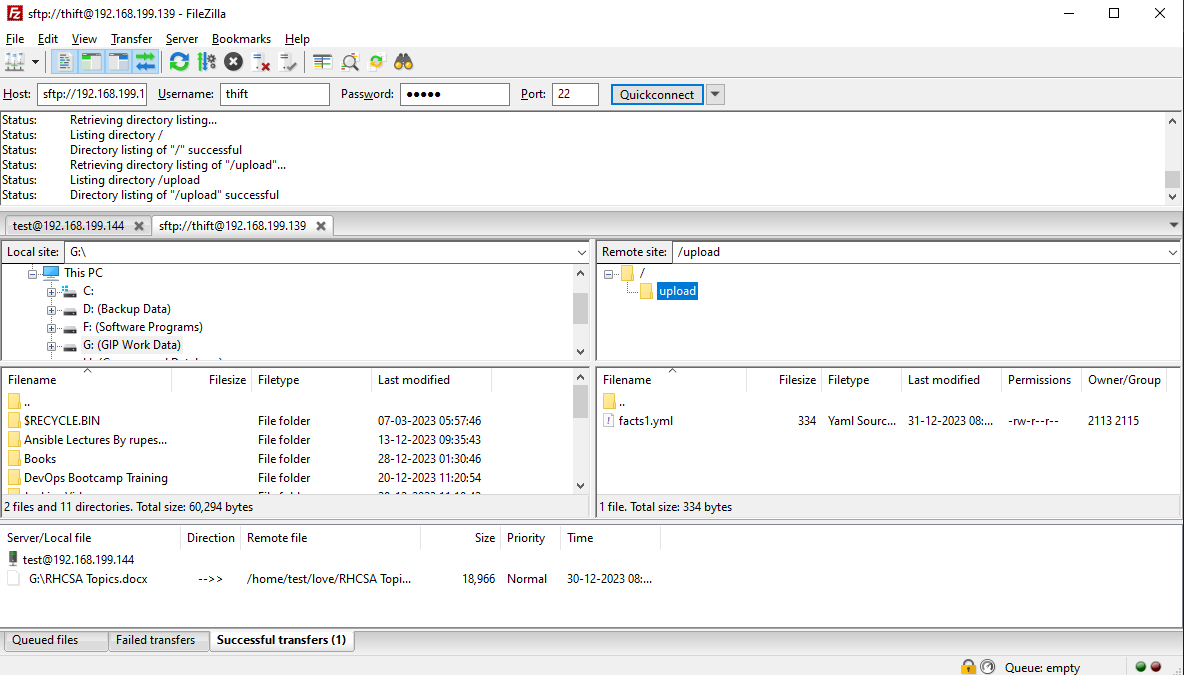
Install an FTP Client: First, ensure you have an FTP client installed on your remote machine. Popular FTP clients include FileZilla, WinSCP, MobaXterm (for Windows), Cyberduck (for macOS), or the command-line FTP client. Here on the window machine, I am using MobaXterm & FileZilla.
MobaXterm (Command Line Interface)
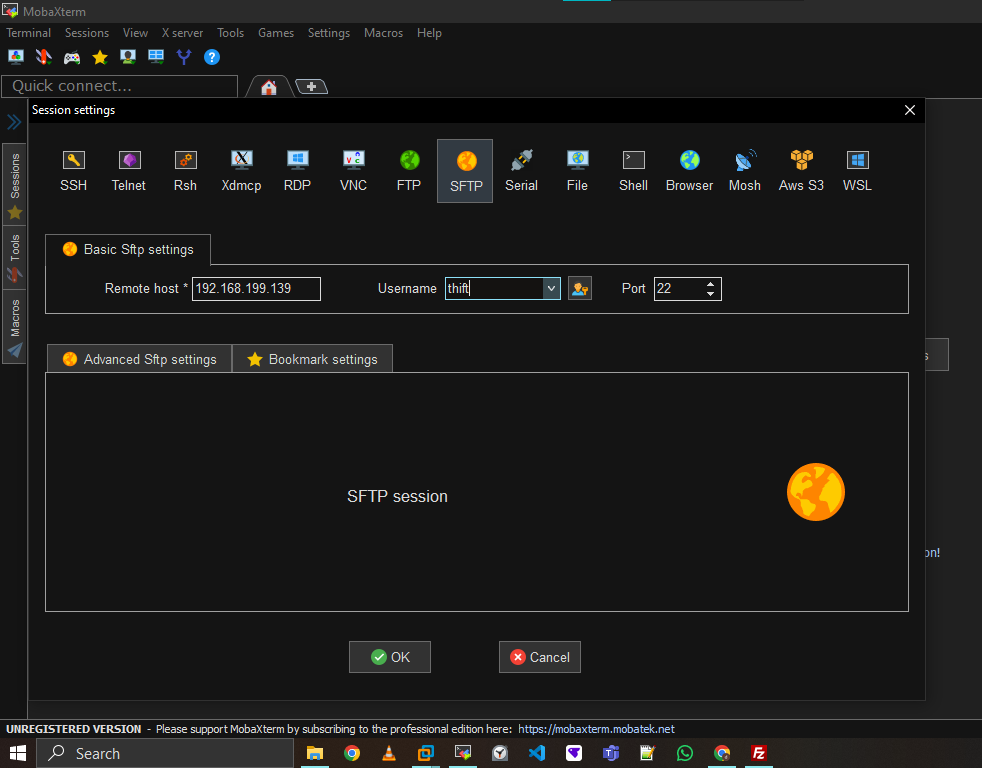
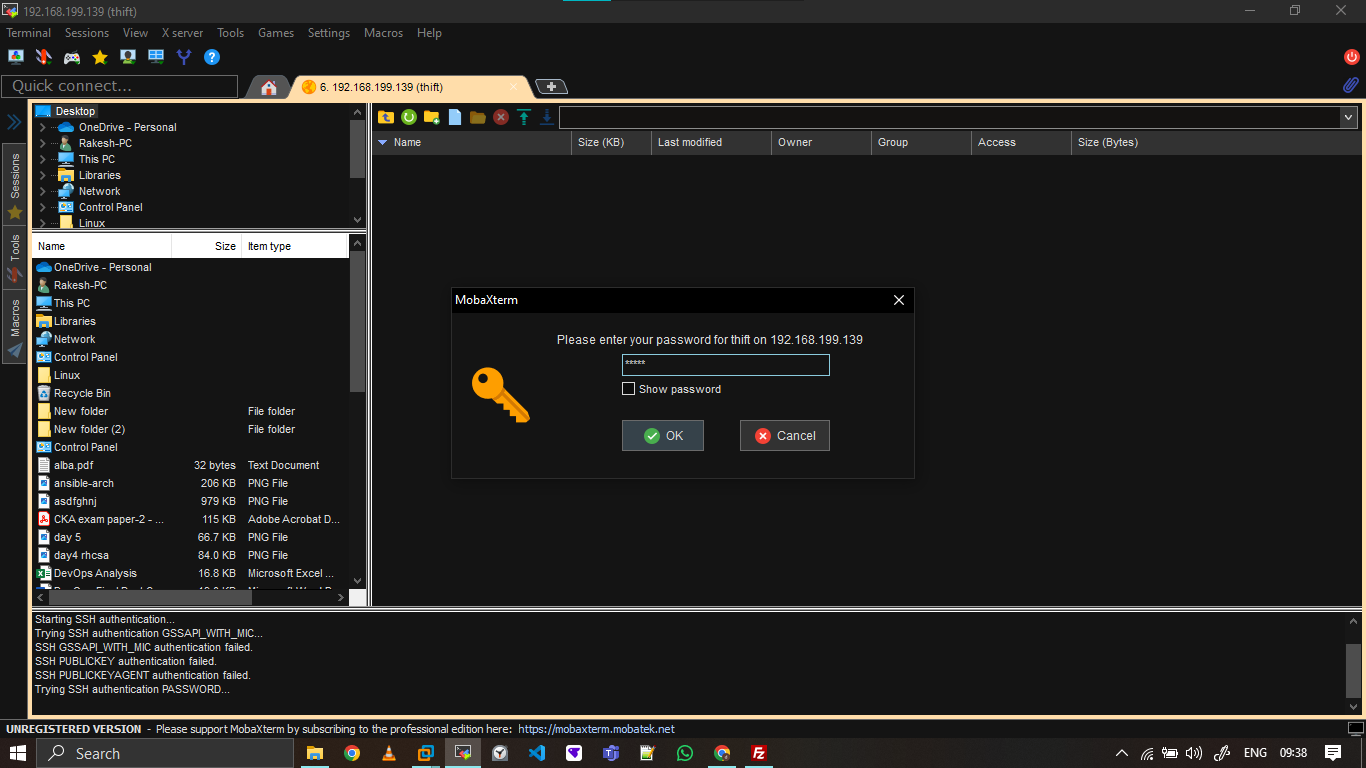
You can see upload directory here.
Basic Commands to use VSFTP command line:
'l' just before entering each Linux command while connected to the FTP server. For example, if you want to execute a command on your server, precede it with '!' within the FTP prompt. For instance, in FTP, use 'ftp> lpwd' to execute the 'pwd' command on your server.lsordir: Lists files and directories on the remote server.get <filename>: Downloads a file from the remote server.put <filename>: Uploads a file to the remote server.cd <directory>: Changes the current directory on the remote server.mkdir <directory>: Creates a directory on the remote server.delete <filename>: Deletes a file on the remote server.byeorexit: Quits the FTP session and disconnects from the server.
Thank you for your time.
if any issue occurs in this article setup, commands, theory, or definition. Please send a comment in the comment box.
About the author
Let's learn together and serve the society, Make India Proud.
Comments
Join the discussionNo comments yet. Be the first to comment.
Ansible-Series
Welcome to our series on Ansible Automation! We'll explore how Ansible, an open-source IT automation engine, simplifies complex tasks, increasing productivity and efficiency in IT operations.


